
How to Generate Chama Financial Reports | ChamaConnect
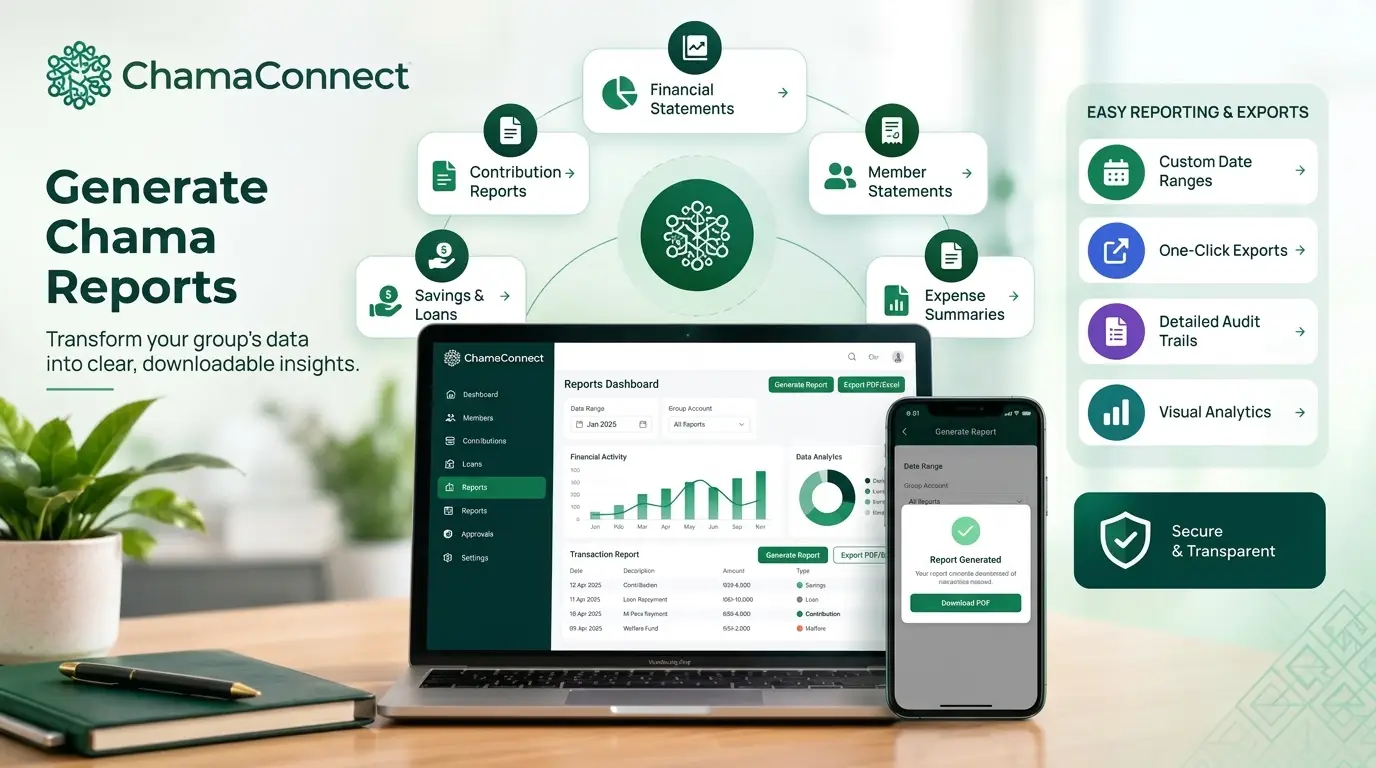
ChamaConnect lets you generate chama financial reports from one place, making it easier to review contributions, loans, dividends, expenses and member financial activity. You can filter reports by financial year or date range, select a member where supported, and download reports as Excel or PDF files.
For a treasurer preparing for a meeting, a chairperson checking group finances or a member who needs to understand their financial activity, these reports help keep the records accessible and organised.
Steps to Generate Chama Financial Reports in ChamaConnect
1. Open your chama and go to Reports
Log in to ChamaConnect and open the chama whose records you want to review. Your group dashboard gives you an overview of its financial position.
From the group navigation menu, select Reports. The Financial Reports & Ledger section brings several types of financial information together, so you can review the records relevant to your task.
2. Choose the reporting period
Use the financial year filter to select the relevant period. You can also enter specific start and end dates to focus on a particular month, quarter or other period.
For example, if your chama wants to review contributions from January to March, set those dates before refreshing the report. This helps you focus on the transactions within the period you want to examine.
3. Select the report you need
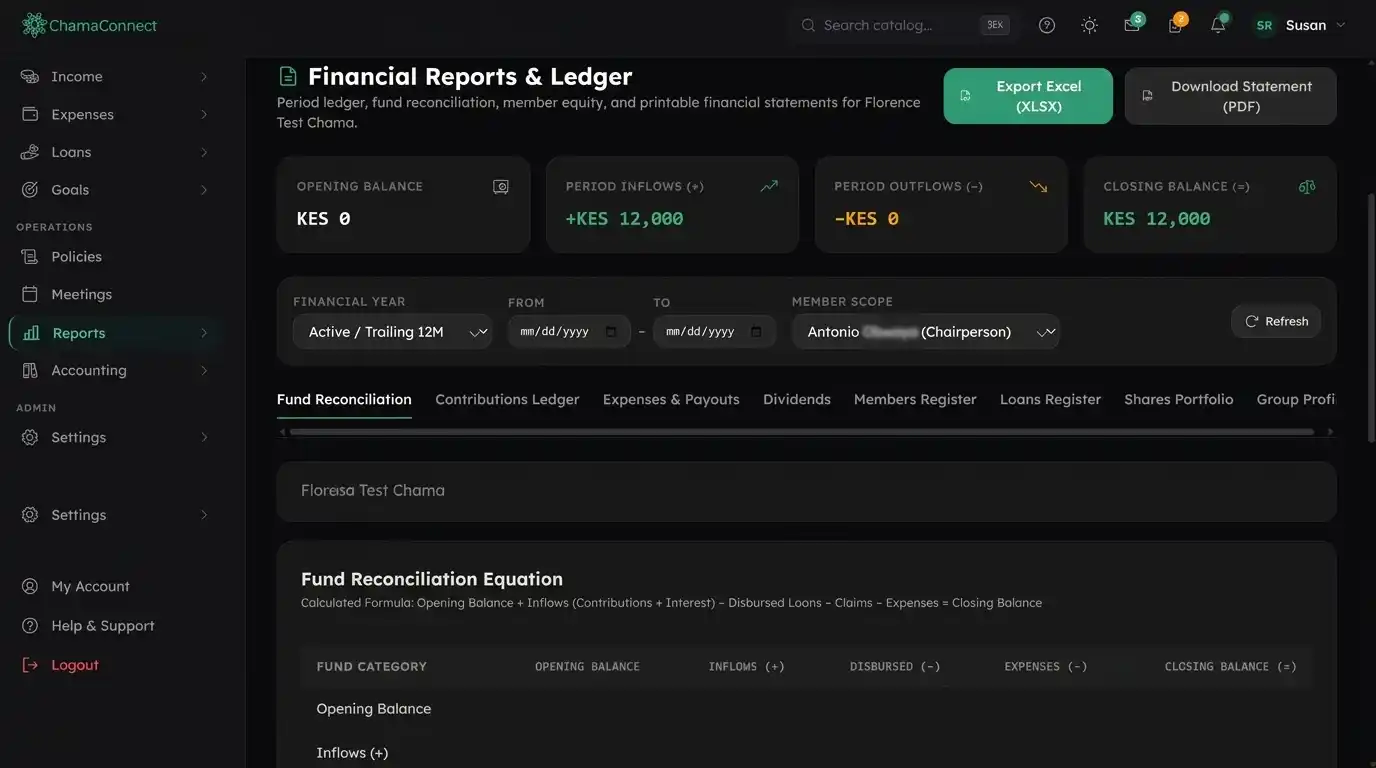
ChamaConnect provides different report views for different financial tasks. Depending on what you need to check, you can access:
Fund Reconciliation: Review opening balances, money coming in, money going out and closing balances.
Contributions Ledger: Review recorded member contributions.
Expenses & Payouts: Examine group expenses and payouts.
Dividends: Access dividend-related records.
Members Register: Review the group's member register.
Loans Register: Review loan records.
Shares Portfolio: Access share-related information.
Group Profile: View group profile information.
Select the relevant report tab. For fund reconciliation, ChamaConnect displays a calculation based on the opening balance, inflows, disbursed loans, claims and expenses to arrive at the closing balance.
4. Choose the member scope where available
Some reports can be filtered to show the group as a whole or a particular member. The screenshot shows a Member Scope filter alongside the financial year and date filters.
This is useful when an office bearer needs to investigate a contribution discrepancy or review a member's financial activity. Access depends on the user's role and the report available.
ChamaConnect also applies role-based access. Office bearers can access the accounting information needed for their responsibilities, while ordinary members cannot access another member's private accounting records. Members can view their own activity and general group reports available to them.
5. Refresh and download the report
Once you've selected the reporting period and any relevant filters, click Refresh to update the displayed information.
When you're ready to keep a copy, use the available export options. The Reports screen provides Export Excel (XLSX) and Download Statement (PDF).
Excel is useful when you need to review or work with data in a spreadsheet. PDF is convenient when you need a document to share or print. Check the selected period and report before distributing a downloaded file.
Why Digital Chama Financial Reports Matter
Manual records can make it difficult to answer simple questions: Who has contributed? What has the group spent? How much remains outstanding on loans? Do the recorded figures reconcile?
ChamaConnect brings multiple financial report views into one platform. Office bearers can review the relevant records, investigate discrepancies and prepare information for group meetings without relying entirely on separate notebooks and spreadsheets.
The platform also supports role-based access and approval workflows for financial activities. This helps groups maintain accountability while keeping members' private financial information appropriately restricted.
Frequently Asked Questions
Can I generate chama financial reports for a specific month?
Yes. You can use the date filters to select a reporting period and refresh the report.
Can I download chama financial reports?
Yes. The Reports screen provides Excel (XLSX) export and PDF statement download options.
What types of financial reports can I access?
Available report views include fund reconciliation, contributions, expenses and payouts, dividends, the members register, loans register, shares portfolio and group profile.
Can ordinary members view other members' financial reports?
No. Ordinary members cannot access another member's private accounting records. Their access is limited by their role.
Can I use ChamaConnect reports to prepare for an audit?
The reports can help organise and review financial information for an auditor. Whether they meet a particular audit's documentation requirements depends on the auditor's requirements and the records involved.
Bring Your Chama's Financial Records Together
ChamaConnect helps chamas manage financial activity and review their records in one place. Instead of spending meeting time searching through separate records, your office bearers can use the relevant reports to understand what has been recorded and what needs attention.
Ready to manage your chama with clearer financial records? Explore ChamaConnect and see how digital reporting can support your group's day-to-day financial management.
Get started: https://chamaconnect.io